HTML / CSS / JS

ホバー
 2026/11/16
 2026/11/8
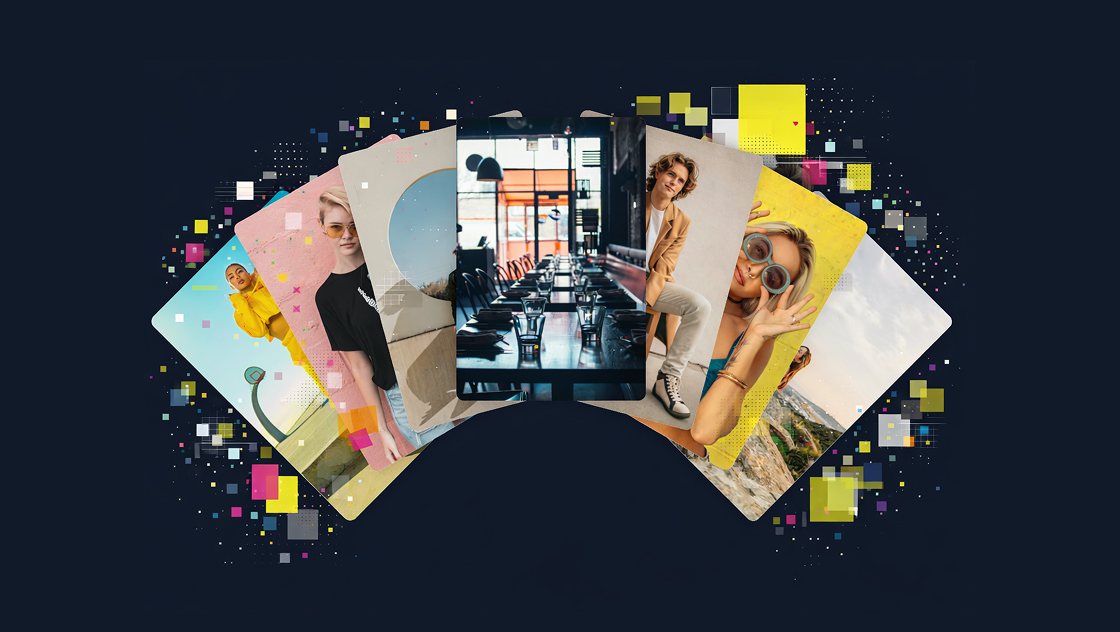
重なった写真カードにマウスを乗せると、扇を開くように左右へ広がるフォトギャラリーです。
カードをクリックすると、選択した写真が中央へ移動しながら拡大し、裏返るようなアニメーションで表示されます。閉じると元の位置へ戻り、カードが重なった状態も維持されます。
CSSのtransformとJavaScriptのWeb Animations APIを組み合わせた、ポートフォリオや写真ギャラリーなどに活用できるインタラクティブな演出です。
<div class="kumonosu-wrapper">
	<div class="kumonosu-stage" data-open="false">
		<div class="kumonosu-pile">
			<div class="kumonosu-hit" aria-hidden="true"></div>
			<button class="kumonosu-card" type="button" aria-label="写真1を拡大" style="z-index:0;transform:rotate(-6deg) translateY(-24px)"><span class="kumonosu-face"><img class="kumonosu-photo" src="https://kumonosu.net/wp-content/uploads/2026/01/260114a.jpeg.webp" alt="写真1" draggable="false"></span></button>
			<button class="kumonosu-card" type="button" aria-label="写真2を拡大" style="z-index:1;transform:rotate(-4deg) translateY(-20px)"><span class="kumonosu-face"><img class="kumonosu-photo" src="https://kumonosu.net/wp-content/uploads/2026/01/260114b.jpeg.webp" alt="写真2" draggable="false"></span></button>
			<button class="kumonosu-card" type="button" aria-label="写真3を拡大" style="z-index:2;transform:rotate(-2deg) translateY(-16px)"><span class="kumonosu-face"><img class="kumonosu-photo" src="https://kumonosu.net/wp-content/uploads/2026/01/260114c.jpeg.webp" alt="写真3" draggable="false"></span></button>
			<button class="kumonosu-card" type="button" aria-label="写真4を拡大" style="z-index:3;transform:rotate(0deg) translateY(-12px)"><span class="kumonosu-face"><img class="kumonosu-photo" src="https://kumonosu.net/wp-content/uploads/2026/01/176a.jpg.webp" alt="写真4" draggable="false"></span></button>
			<button class="kumonosu-card" type="button" aria-label="写真5を拡大" style="z-index:4;transform:rotate(2deg) translateY(-8px)"><span class="kumonosu-face"><img class="kumonosu-photo" src="https://kumonosu.net/wp-content/uploads/2026/01/176b.jpg.webp" alt="写真5" draggable="false"></span></button>
			<button class="kumonosu-card" type="button" aria-label="写真6を拡大" style="z-index:5;transform:rotate(4deg) translateY(-4px)"><span class="kumonosu-face"><img class="kumonosu-photo" src="https://kumonosu.net/wp-content/uploads/2026/01/176d.jpg.webp" alt="写真6" draggable="false"></span></button>
			<button class="kumonosu-card" type="button" aria-label="写真7を拡大" style="z-index:6;transform:rotate(6deg) translateY(0px)"><span class="kumonosu-face"><img class="kumonosu-photo" src="https://kumonosu.net/wp-content/uploads/2026/01/176c.jpg.webp" alt="写真7" draggable="false"></span></button>
		</div>
	</div>
	<dialog class="kumonosu-view" aria-label="写真の拡大表示。外側をクリック、またはEscapeキーで閉じる">
		<div class="kumonosu-large">
			<div class="kumonosu-side"><img class="kumonosu-photo" alt="選択した写真"></div>
			<div class="kumonosu-side" data-back><img class="kumonosu-photo" alt=""></div>
		</div>
	</dialog>
</div>.kumonosu-wrapper {
position: fixed;
inset: 0;
display: grid;
place-items: center;
overflow: auto;
background: #ececec;
}
.kumonosu-wrapper * {
box-sizing: border-box;
}
.kumonosu-stage {
position: relative;
width: min(94vw, 560px);
height: 420px;
}
.kumonosu-pile {
position: absolute;
inset: 0;
pointer-events: none;
}
.kumonosu-hit {
position: absolute;
width: 190px;
height: 260px;
left: calc(50% - 95px);
top: 75px;
pointer-events: auto;
}
.kumonosu-stage[data-open="true"] .kumonosu-hit {
inset: 25px 0 10px;
width: auto;
height: auto;
}
.kumonosu-card {
position: absolute;
left: calc(50% - 78px);
top: 100px;
width: 156px;
height: 208px;
padding: 0;
border: 0;
border-radius: 14px;
background: transparent;
transform-origin: 50% 440px;
transition: transform .65s cubic-bezier(.2, .85, .25, 1);
pointer-events: auto;
cursor: pointer;
-webkit-tap-highlight-color: transparent;
}
.kumonosu-face {
display: block;
width: 100%;
height: 100%;
border-radius: inherit;
overflow: hidden;
background: #fff;
box-shadow: 0 1px 3px #0002, 0 8px 18px #0002;
transition: transform .3s ease;
}
.kumonosu-stage[data-open="true"] .kumonosu-card:hover .kumonosu-face, .kumonosu-stage[data-open="true"] .kumonosu-card:focus-visible .kumonosu-face {
transform: translateY(-18px);
}
.kumonosu-card:focus-visible {
outline: 3px solid #496da8;
outline-offset: 4px;
}
.kumonosu-photo {
display: block;
width: 100%;
height: 100%;
object-fit: cover;
pointer-events: none;
user-select: none;
}
.kumonosu-view {
position: fixed;
inset: 0;
max-width: none;
max-height: none;
width: 100%;
height: 100%;
margin: 0;
padding: 0;
border: 0;
background: transparent;
overflow: hidden;
}
.kumonosu-view::backdrop {
background: #0003;
}
.kumonosu-view[open] {
display: grid;
place-items: center;
}
.kumonosu-large {
position: relative;
width: min(70vw, 300px, calc(72dvh * .75));
aspect-ratio: 3/4;
transform-style: preserve-3d;
}
.kumonosu-side {
position: absolute;
inset: 0;
border-radius: 20px;
overflow: hidden;
backface-visibility: hidden;
background: white;
box-shadow: 0 18px 48px #0003;
}
.kumonosu-side[data-back] {
transform: rotateY(180deg);
}
@media(max-width:420px) {
.kumonosu-card {
width: 126px;
height: 168px;
left: calc(50% - 63px);
transform-origin: 50% 350px;
}
}
@media(prefers-reduced-motion:reduce) {
.kumonosu-card, .kumonosu-face {
transition: none;
}
}(() => {
const wrapper = document.querySelector('.kumonosu-wrapper');
const stage = wrapper.querySelector('.kumonosu-stage');
const pile = wrapper.querySelector('.kumonosu-pile');
const dialog = wrapper.querySelector('.kumonosu-view');
const large = dialog.querySelector('.kumonosu-large');
let cards = [...pile.querySelectorAll('.kumonosu-card')];
let hovering = false,
selected = null,
closing = false,
animation = null;
const reduced = () => matchMedia('(prefers-reduced-motion: reduce)').matches;
// 全カードを共通の支点で回転させ、横移動と傾きを一つの動きにまとめる。
function layout(open) {
stage.dataset.open = String(open);
cards.forEach((card, i) => {
const angle = (i - (cards.length - 1) / 2) * (open ? 40 / (cards.length - 1) : 12 / (cards.length - 1));
card.dataset.angle = String(angle);
card.style.zIndex = String(i);
card.style.transitionDelay = reduced() ? '0ms' : `${open ? i*35 : (cards.length-1-i)*25}ms`;
card.style.transform = `rotate(${angle}deg) translateY(${open ? 0 : -(cards.length-1-i)*4}px)`;
});
}
pile.addEventListener('pointerover', e => {
if (e.pointerType === 'touch') return;
hovering = true;
layout(true);
});
stage.addEventListener('pointerleave', () => {
hovering = false;
if (!selected) layout(false);
});
pile.addEventListener('focusin', () => layout(true));
pile.addEventListener('focusout', e => {
if (!pile.contains(e.relatedTarget) && !selected && !hovering) layout(false);
});
function origin(card) {
const a = card.getBoundingClientRect(),
b = large.getBoundingClientRect();
return `translate(${a.left+a.width/2-b.left-b.width/2}px,${a.top+a.height/2-b.top-b.height/2}px) rotate(${card.dataset.angle || 0}deg) rotateY(0deg) scale(${card.offsetWidth/b.width})`;
}
const centered = 'translate(0px,0px) rotate(0deg) rotateY(180deg) scale(1)';
function open(card) {
if (selected) return;
selected = card;
layout(true);
dialog.querySelectorAll('img').forEach(img => {
img.src = card.querySelector('img').src;
});
dialog.showModal();
const from = origin(card);
card.style.visibility = 'hidden';
large.style.transform = centered;
animation = large.animate([{
transform: from
}, {
transform: centered
}], {
duration: reduced() ? 0 : 750,
easing: 'cubic-bezier(.22,1,.36,1)'
});
}
// 元のカードは場所を保持し、別要素が拡大する。戻す際も元の位置と重なり順を維持する。
function close() {
if (!selected || closing) return;
closing = true;
const card = selected;
// ダイアログの最前面レイヤーからカードの積層内へ移し、元の順序で回転させる。
const current = getComputedStyle(large).transform;
const width = large.offsetWidth,
height = large.offsetHeight;
const bounds = stage.getBoundingClientRect();
const flyer = large.cloneNode(true);
flyer.style.position = 'absolute';
flyer.style.width = `${width}px`;
flyer.style.height = `${height}px`;
flyer.style.left = `${innerWidth/2-bounds.left-width/2}px`;
flyer.style.top = `${innerHeight/2-bounds.top-height/2}px`;
flyer.style.aspectRatio = 'auto';
flyer.style.pointerEvents = 'none';
flyer.style.zIndex = card.style.zIndex;
flyer.style.transform = current;
pile.insertBefore(flyer, card);
if (animation) animation.cancel();
dialog.close();
// 終点はカード本体と同じサイズ・角度。支点を中心に換算して位置を求める。
const angle = Number(card.dataset.angle);
const radians = angle * Math.PI / 180;
const pivot = parseFloat(getComputedStyle(card).transformOrigin.split(' ')[1]) - card.offsetHeight / 2;
const centerX = card.offsetLeft + card.offsetWidth / 2 + pivot * Math.sin(radians);
const centerY = card.offsetTop + card.offsetHeight / 2 + pivot * (1 - Math.cos(radians));
const dx = centerX - (innerWidth / 2 - bounds.left);
const dy = centerY - (innerHeight / 2 - bounds.top);
const home = `translate(${dx}px,${dy}px) rotate(${angle}deg) rotateY(360deg) scale(${card.offsetWidth/width},${card.offsetHeight/height})`;
animation = flyer.animate([{
transform: current
}, {
transform: home
}], {
duration: reduced() ? 0 : 600,
easing: 'cubic-bezier(.4,0,.2,1)',
fill: 'forwards'
});
animation.onfinish = () => {
card.style.visibility = '';
flyer.remove();
selected = null;
closing = false;
animation = null;
card.focus({
preventScroll: true
});
};
}
cards.forEach(card => card.addEventListener('click', () => open(card)));
dialog.addEventListener('click', e => {
if (!large.contains(e.target)) close();
});
dialog.addEventListener('cancel', e => {
e.preventDefault();
close();
});
layout(false);
})();7枚の写真カードを重ねて配置し、マウスホバーやクリックによって表示状態を切り替えるフォトギャラリーです。
HTMLでは.kumonosu-pileの中に7つの.kumonosu-cardを配置しています。
各カードは共通の回転軸を持ち、CSSのtransform-originとrotate()によって扇状に広がる仕組みです。
写真の拡大表示にはHTMLのdialog要素を使用し、JavaScriptのWeb Animations APIでカードの移動・回転・拡大縮小を制御しています。
外部ライブラリは使用していません。
初期状態では、写真カードが中央に重なっています。
マウスを乗せるとlayout(true)が実行され、各カードの角度が変更されて扇状に広がります。
閉じた状態では全体の角度差が12度、開いた状態では40度になるように計算されています。
さらにカードごとにtransition-delayを設定することで、順番に広がっていくような動きを加えています。
マウスが離れるとlayout(false)が実行され、カードが元の重なった状態へ戻ります。
キーボードでカードにフォーカスした場合も、同様に展開されます。
カードをクリックすると、選択した写真が画面中央に拡大表示されます。
拡大時には、選択したカードの位置や角度を取得し、その位置から中央へ移動するアニメーションを実行しています。
同時にrotateY(180deg)を適用することで、カードが裏返りながら拡大するような演出になっています。
拡大表示にはdialog.showModal()を使用しているため、写真はモーダルとして表示されます。
写真の外側をクリックするか、Escapeキーを押すと閉じることができます。
閉じる際には、拡大表示用の要素を複製して元のカード位置までアニメーションさせています。これにより、写真が中央から元の位置へ戻る動きを表現しています。
カードの広がり方は、JavaScriptのlayout()関数から変更できます。
open ? 40 / (cards.length - 1) : 12 / (cards.length - 1)の40を大きくすると扇が広く開き、小さくすると控えめな広がりになります。
12は閉じた状態の角度差です。小さくするとカードがより重なった状態になります。
カードの展開速度は、CSSの.kumonosu-cardに設定されたtransitionから調整できます。現在は0.65秒です。
拡大時のアニメーションはJavaScriptのopen()関数で750ミリ秒、閉じる際はclose()関数で600ミリ秒に設定されています。
写真カードのサイズは.kumonosu-cardのwidthとheight、拡大表示時のサイズは.kumonosu-largeから変更できます。
カードの枚数を増減した場合も、cards.lengthを使って展開角度が計算されるため、基本的な扇状の配置は維持されます。
カードは共通の回転軸を基準に配置されているため、サイズやtransform-originを変更すると広がり方も変わります。
特にカードの枚数を増やす場合は、重なりやクリックできる範囲を確認しながら調整してください。
スマートフォンではホバー操作がないため、カードをタップして拡大表示する使い方が中心になります。
また、拡大・縮小アニメーションでは要素の位置やサイズを取得しているため、レイアウトを大きく変更する場合は、元の位置へ戻る動きも確認する必要があります。
なお、prefers-reduced-motionに対応しており、動きを抑える設定の環境ではカードの展開や拡大・縮小アニメーションが無効になります。