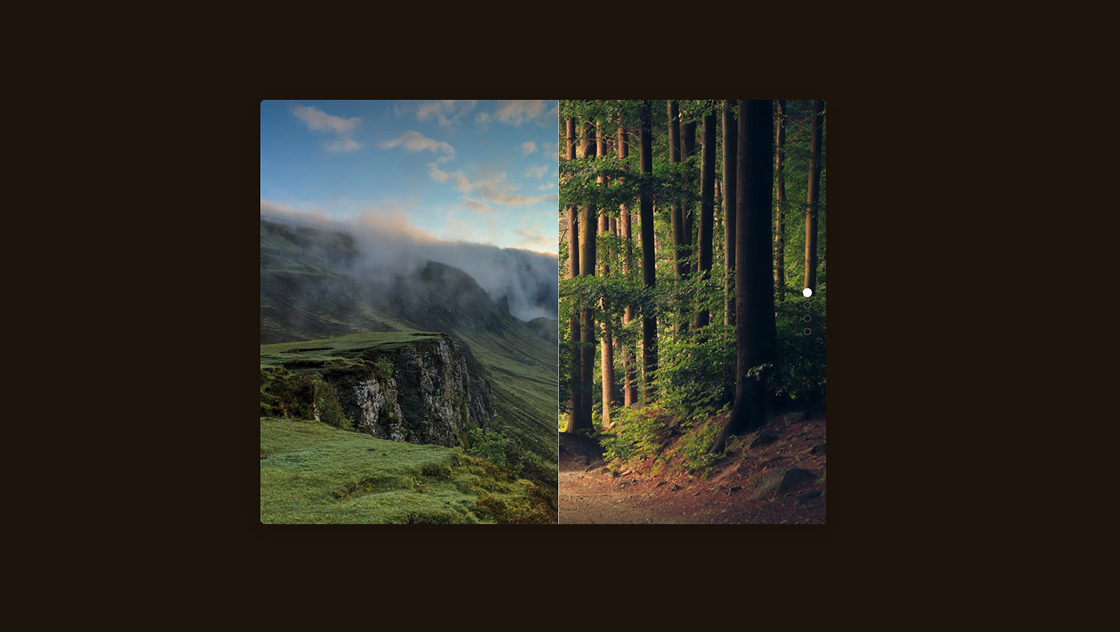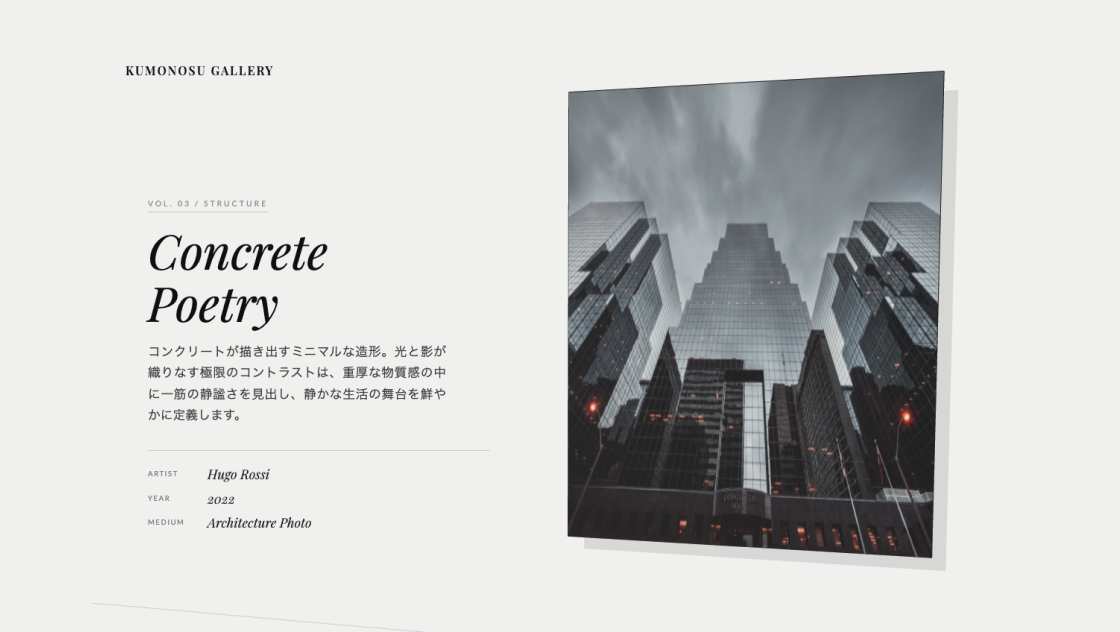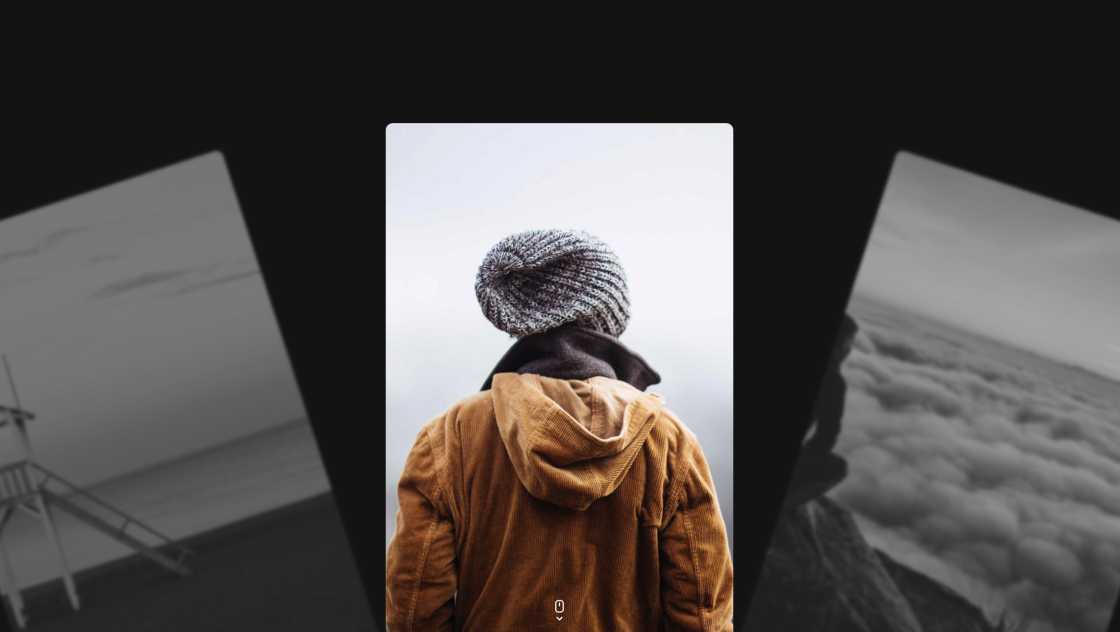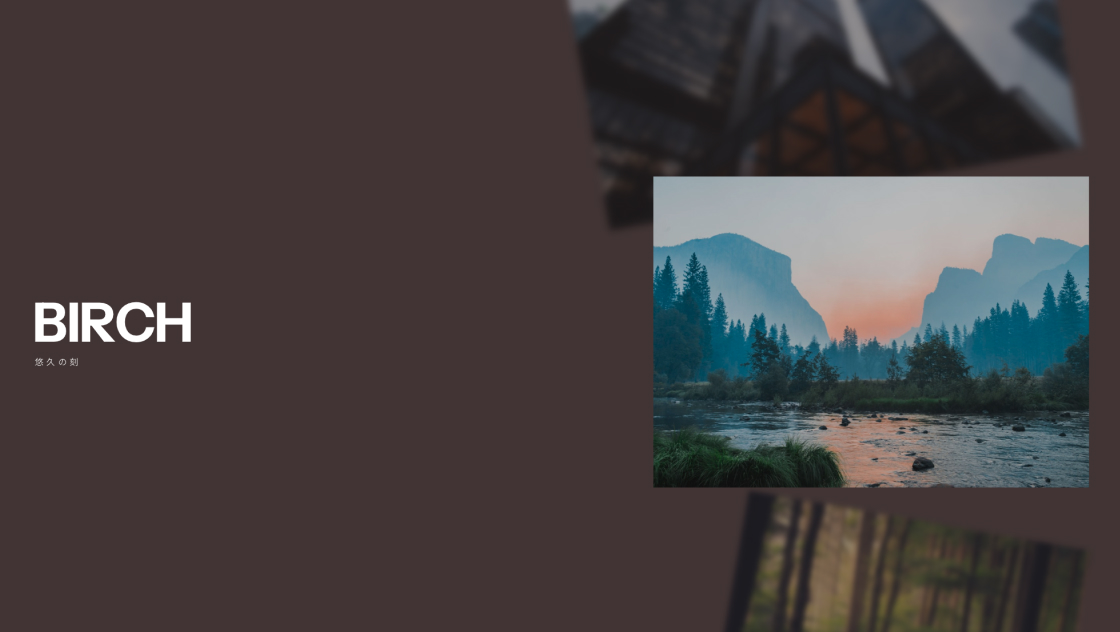
HTML / CSS / JS

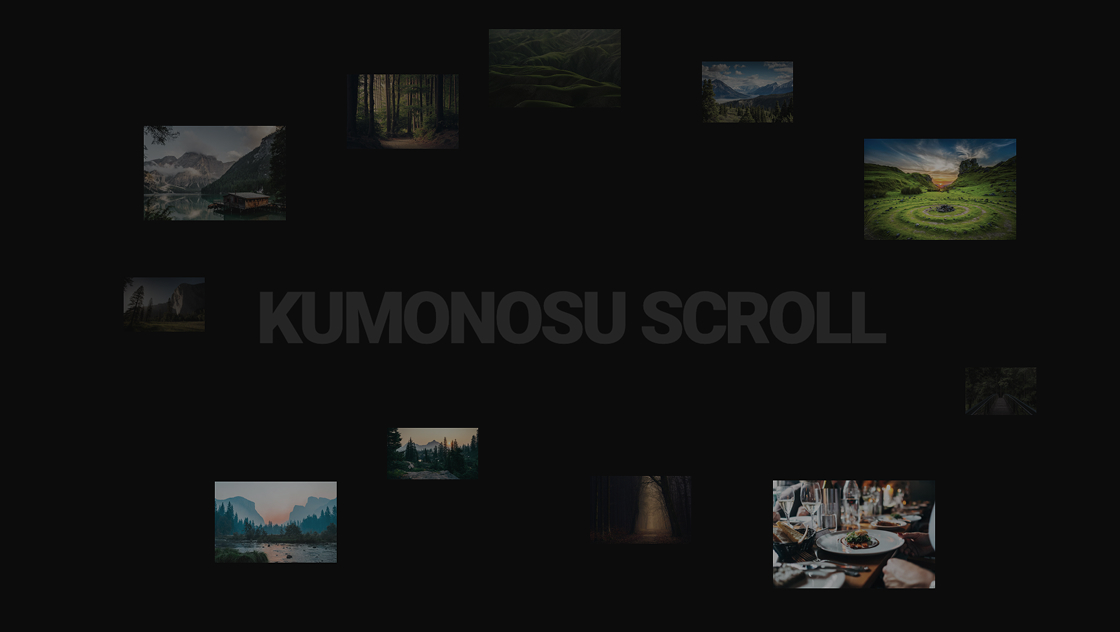
スクロール
 2026/02/27
 2026/2/26
ページをスクロールするだけで、散りばめた画像がぐっと迫ってくるような体験を作れたら、ファーストビューのインパクトは格段に上がります。
この演出では、CSSのperspectiveとGSAP ScrollTriggerを組み合わせて、画像が奥行き方向に迫ってくる3Dスクロールアニメーションを実装しています。
さらに後半セクションでは、テキストが一文字ずつ明るくなるリビール演出も加わり、ストーリー性のあるページ構成を実現します。
<div id="kumonosu-content">
	<main>
		<div class="kumonosu-container">
			<h1 class="kumonosu-heading">KUMONOSU Scroll</h1>
			<!-- 画像(Unsplash) -->
			<div class="kumonosu-item" data-layer="2"><img src="https://images.unsplash.com/photo-1470770841072-f978cf4d019e?auto=format&fit=crop&w=600&q=80" alt=""></div>
			<div class="kumonosu-item" data-layer="2"><img src="https://images.unsplash.com/photo-1441974231531-c6227db76b6e?auto=format&fit=crop&w=600&q=80" alt=""></div>
			<div class="kumonosu-item" data-layer="1"><img src="https://images.unsplash.com/photo-1501854140801-50d01698950b?auto=format&fit=crop&w=600&q=80" alt=""></div>
			<div class="kumonosu-item" data-layer="2"><img src="https://images.unsplash.com/photo-1464822759023-fed622ff2c3b?auto=format&fit=crop&w=600&q=80" alt=""></div>
			<div class="kumonosu-item" data-layer="3"><img src="https://images.unsplash.com/photo-1472214103451-9374bd1c798e?auto=format&fit=crop&w=600&q=80" alt=""></div>
			<div class="kumonosu-item" data-layer="1"><img src="https://images.unsplash.com/photo-1447752875215-b2761acb3c5d?auto=format&fit=crop&w=600&q=80" alt=""></div>
			<div class="kumonosu-item" data-layer="3"><img src="https://images.unsplash.com/photo-1506744038136-46273834b3fb?auto=format&fit=crop&w=600&q=80" alt=""></div>
			<div class="kumonosu-item" data-layer="3"><img src="https://images.unsplash.com/photo-1511497584788-876760111969?auto=format&fit=crop&w=600&q=80" alt=""></div>
			<div class="kumonosu-item" data-layer="1"><img src="https://images.unsplash.com/photo-1426604966848-d7adac402bff?auto=format&fit=crop&w=600&q=80" alt=""></div>
			<div class="kumonosu-item" data-layer="3"><img src="https://images.unsplash.com/photo-1414235077428-338989a2e8c0?auto=format&fit=crop&w=600&q=80" alt=""></div>
			<div class="kumonosu-item" data-layer="2"><img src="https://images.unsplash.com/photo-1500673922987-e212871fec22?auto=format&fit=crop&w=600&q=80" alt=""></div>
		</div>
		<section class="kumonosu-section-stick">
			<p class="kumonosu-reveal">KUMONOSUはコピペで使えるCSS・JSのアニメーションデザインをまとめたギャラリーサイトです。</p>
		</section>
	</main>
</div>@import url('https://fonts.googleapis.com/css2?family=Noto+Sans+JP:wght@400;700&family=Roboto:wght@900&display=swap');
:root {
--kumonosu-black: #0a0a0a;
--kumonosu-white: #ffffff;
--kumonosu-gray: #444444;
}
* {
margin: 0;
padding: 0;
box-sizing: border-box;
}
html.lenis {
height: auto;
}
.lenis-smooth {
scroll-behavior: auto !important;
}
.lenis-smooth [data-lenis-prevent] {
overscroll-behavior: contain;
}
.lenis-stopped {
overflow: hidden;
}
body {
background-color: var(--kumonosu-black);
color: var(--kumonosu-white);
font-family: "Noto Sans JP", "Roboto", sans-serif;
overflow-x: hidden;
line-height: 1.6;
}
.kumonosu-container {
height: 100vh;
overflow: hidden;
position: relative;
perspective: 1000px;
width: 100vw;
}
.kumonosu-heading {
font-family: 'Roboto', sans-serif;
font-size: clamp(2rem, 8vw, 60px);
font-weight: 900;
text-align: center;
opacity: 0.1;
position: absolute;
left: 50%;
top: 50%;
transform: translate(-50%, -50%);
white-space: nowrap;
z-index: 10;
letter-spacing: -0.05em;
text-transform: uppercase;
will-change: transform, opacity;
}
.kumonosu-item {
position: absolute;
transform-origin: center center;
will-change: transform, opacity;
}
.kumonosu-item[data-layer="3"] {
opacity: 0.6;
z-index: 3;
}
.kumonosu-item[data-layer="2"] {
opacity: 0.4;
z-index: 2;
}
.kumonosu-item[data-layer="1"] {
opacity: 0.2;
z-index: 1;
}
.kumonosu-item:nth-child(2) {
left: 8vw;
top: 20%;
width: 14vw;
}
.kumonosu-item:nth-child(3) {
left: 28%;
top: 12%;
width: 11vw;
}
.kumonosu-item:nth-child(4) {
left: 42%;
top: 5%;
width: 13vw;
}
.kumonosu-item:nth-child(5) {
right: 28%;
top: 10%;
width: 9vw;
}
.kumonosu-item:nth-child(6) {
right: 6%;
top: 22%;
width: 15vw;
}
.kumonosu-item:nth-child(7) {
bottom: 35%;
right: 4%;
width: 7vw;
}
.kumonosu-item:nth-child(8) {
bottom: 12%;
left: 15%;
width: 12vw;
}
.kumonosu-item:nth-child(9) {
bottom: 25%;
left: 32%;
width: 9vw;
}
.kumonosu-item:nth-child(10) {
bottom: 48%;
left: 6%;
width: 8vw;
}
.kumonosu-item:nth-child(11) {
bottom: 8%;
right: 14%;
width: 16vw;
}
.kumonosu-item:nth-child(12) {
bottom: 15%;
right: 38%;
width: 10vw;
}
.kumonosu-item img {
width: 100%;
height: auto;
display: block;
filter: grayscale(20%);
}
.kumonosu-section-stick {
min-height: 100vh;
display: flex;
justify-content: center;
align-items: center;
position: relative;
}
.kumonosu-reveal {
font-size: clamp(1.4rem, 4.5vw, 3.2rem);
font-weight: 700;
text-align: center;
width: 85%;
line-height: 2;
word-break: keep-all;
}
.char {
display: inline-block;
}gsap.registerPlugin(ScrollTrigger);
// 1. Lenis スムーズスクロールの初期化
const lenis = new Lenis();
lenis.on('scroll', ScrollTrigger.update);
gsap.ticker.add((time) => {
lenis.raf(time * 1000);
});
gsap.ticker.lagSmoothing(0);
// 2. ズームアニメーション (GSAP Coreだけで可能)
const zoomTl = gsap.timeline({
scrollTrigger: {
trigger: ".kumonosu-container",
start: "top top",
end: "+=150%",
pin: true,
scrub: 1.2
}
});
zoomTl.to(".kumonosu-item[data-layer='3']", {
z: 800,
opacity: 1
}, 0).to(".kumonosu-item[data-layer='2']", {
z: 500,
opacity: 1
}, 0).to(".kumonosu-item[data-layer='1']", {
z: 200,
opacity: 1
}, 0).to(".kumonosu-heading", {
z: 100,
opacity: 1
}, 0);
// 3. テキストリビール (SplitTypeを使用)
const textElement = document.querySelector('.kumonosu-reveal');
const splitText = new SplitType(textElement, {
types: 'chars'
});
gsap.set(splitText.chars, {
opacity: 0.1
});
const revealTl = gsap.timeline({
scrollTrigger: {
trigger: ".kumonosu-section-stick",
pin: true,
start: "center center",
end: "+=2000",
scrub: 0.5
}
});
revealTl.to(splitText.chars, {
opacity: 1,
stagger: 0.1,
ease: "none"
}).to({}, {
duration: 1
}) // 溜め
.to(textElement, {
opacity: 0,
scale: 1.05,
filter: "blur(15px)",
duration: 2,
ease: "power2.in"
});https://cdnjs.cloudflare.com/ajax/libs/gsap/3.12.2/gsap.min.js
https://cdnjs.cloudflare.com/ajax/libs/gsap/3.12.2/ScrollTrigger.min.js
https://cdn.jsdelivr.net/gh/studio-freight/lenis@1.0.19/bundled/lenis.min.js
https://unpkg.com/split-typeこの演出は大きく2つのセクションで構成されています。
1つ目は「3Dズームセクション」です。画面全体に perspective: 100vh を設定した3D空間の中に、12枚の画像と1つの見出しテキストを配置しています。
各画像には data-layer="1"〜"3" の属性が付与されており、スクロールに応じてGSAPが z 値(奥行き方向)を変化させることで、レイヤーごとに異なる速度で画像が迫ってくる立体的な動きを生み出します。
レイヤー3が最も大きく動き(z: 900)、レイヤー1が控えめ(z: 300)です。セクションはピン留め(pin: true)され、スクロール量150%分の区間でアニメーションが進行します。
2つ目は「テキストリビールセクション」です。SplitTextプラグインでテキストを1文字単位に分割し、各文字の不透明度を0.1から1へスクロールに連動して順番に上げていきます。
すべての文字が表示された後にポーズを挟み、最後にブラー+フェードアウトで余韻を残して消えます。
全体のスクロールにはScrollSmootherを適用し、慣性のあるなめらかなスクロール体験を実現しています。
ScrollSmootherとSplitTextはCodePen上の試用版を読み込んでいるため、本番環境で使用する場合はGSAPの有料ライセンス(Club GSAP)が必要です。
.kumonosu-item:nth-child(n) の left / right / top / bottom / width を変更すれば、画像の散らばり方を自由に調整できます。data-layer の数を増やしたり、JS側の z 値を変更すれば、迫ってくる強弱をコントロールできます。end: "+=150%" や end: "+=2000" の数値を増減することで、演出の速さや尺を調整できます。.kumonosu-reveal のフォントサイズや letter-spacing、最後のブラー値(filter: "blur(15px)")を変えると印象が変わります。--kumonosu-black / --kumonosu-white を書き換えれば、ライト系のテーマにも切り替えられます。filter: grayscale(20%) の値を上げればモノクロ寄りに、0にすればフルカラー表示になります。perspective による3D演出は、画像枚数が多い場合やスマートフォンの低スペック端末でパフォーマンスに影響が出る可能性があります。画像の枚数とサイズの最適化を推奨します。normalizeScroll: true はモバイルのスクロール挙動を安定させますが、他のスクロール系ライブラリやブラウザのネイティブ機能と競合する場合があります。overflow-x: hidden を body に設定しているため、横方向にはみ出す要素が意図せずカットされる可能性があります。レイアウト全体を確認のうえ使用してください。